Free Apple Log LUTs (iPhone 15, 16 & 17 Pro)
Measured Apple Log (BT.2020) to Rec.709 3D .cube conversion and stage-ready creative looks for iPhone 15 Pro, 16 Pro and 17 Pro ProRes Log footage. 16 of them, free, for DaVinci Resolve, Premiere Pro and Final Cut Pro.
Apply Apple Log → Rec.709 first to normalize BT.2020 and 48.8% IRE middle gray, then stack one of these 65³ stage looks downstream at 40–70% intensity:
- Save to Files: Tap Download .cube and save the file to the iOS Files app (On My iPhone).
- Blackmagic Camera (Live Monitoring): Go to Settings → LUT → Load LUT, pick this
.cube, and toggle Display LUT on while keeping Record LUT to Clip off so ProRes stays unbaked Log. - Final Cut Camera & Desktop Finishing: Record ProRes in Apple Log with Final Cut Camera’s preview enabled, then load this
.cubein DaVinci Resolve, Final Cut Pro, or Premiere Pro.
Why Apple Log needs a dedicated transform (48.8% IRE middle grey)
Apple Log encodes 18% middle grey at 48.8% IRE (10-bit code value 500) inside a Rec.2020 / BT.2020 color container — significantly higher than Sony S-Log3 (41.1% IRE) or Canon C-Log3 (34.3% IRE). Dropping an S-Log3 or generic contrast LUT onto iPhone ProRes Log footage pushes midtones nearly a full stop too bright and leaves BT.2020 stage blues and magentas unmapped.
Our Apple Log to Rec.709 conversion LUT maps the exact Apple Log transfer function and BT.2020 primaries into Rec.709 so iPhone 15 Pro, 16 Pro and 17 Pro B-cam clips match Sony FX3/FX6 and Canon C70/C80 A-cams on a festival timeline.
Shooting concerts in Apple Log with Blackmagic Camera
The native iOS Camera app dynamically shifts shutter angle and white balance during stage strobes. Use Blackmagic Camera (free on iOS), set Color Space to Apple Log – HDR, lock shutter at 1/50s (or 1/60s), lock white balance between 4800K and 5400K, and hold ISO near the low-noise sweet spot (ISO 55–800) using external ND or -0.7 to -1.3 EV exposure bias when stage blinders fire.
Full settings and waveform targets in Exposing Apple Log on iPhone 15 Pro & 16 Pro and the Apple iPhone ProRes Log Hub.
Applying the .cube in DaVinci Resolve, Final Cut Pro & Premiere Pro
Apply Apple Log → Rec.709 first (or Final Cut Pro’s built-in Apple Log camera LUT slot), adjust exposure and white balance before the transform, and then stack any of the creative concert and rave LUTs below at 60–85% intensity for the final show look.
Apple Log Conversion & iPhone Stage LUTs
Apple Log to Rec.709 conversion first, followed by universal creative looks for ProRes Log
Apple Log → Rec.709
by @leo
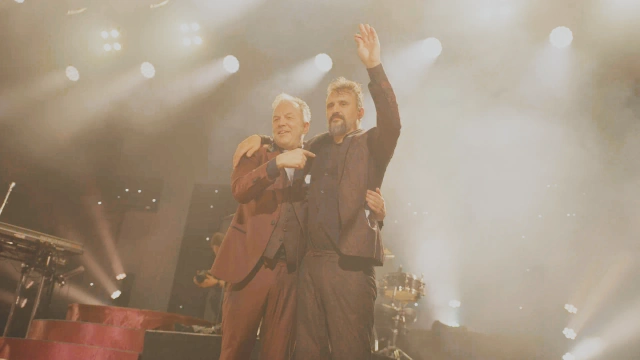
Glacier Hour
by @leo
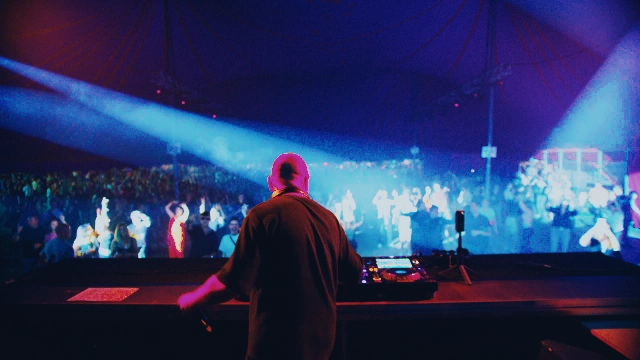
Polar Night
by @leo
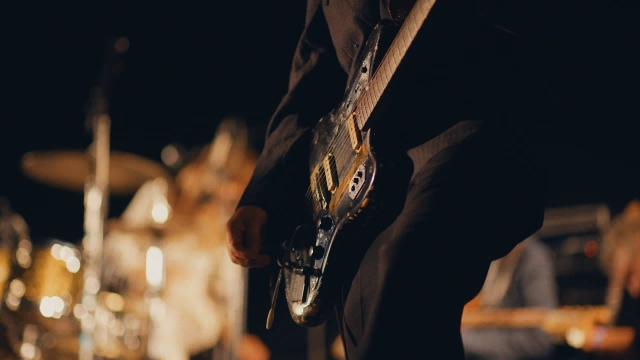
Silver Countdown
by @leo
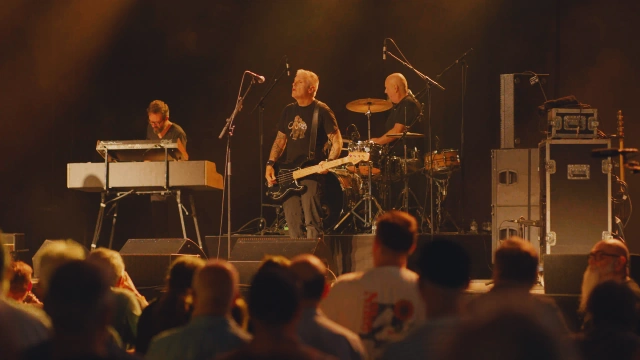
Brass Daybreak
by @leo
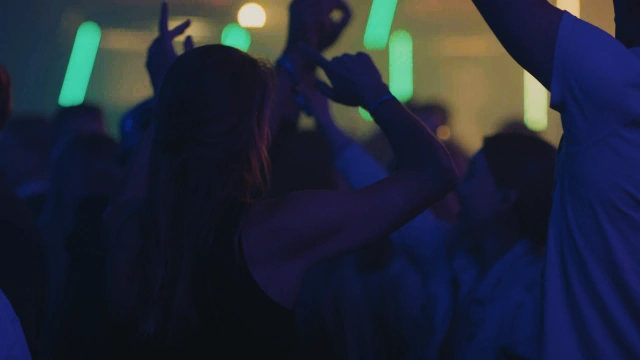
Lagoon Static
by @leo
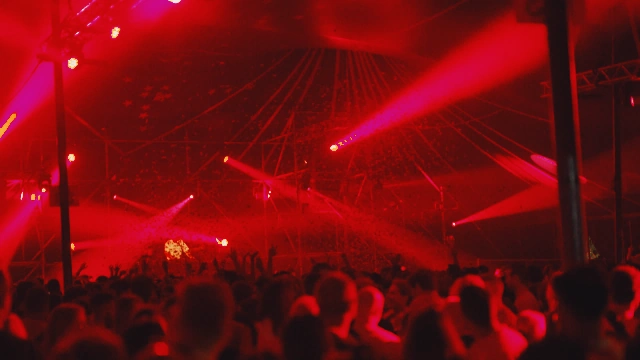
Ruby Afterhours
by @leo
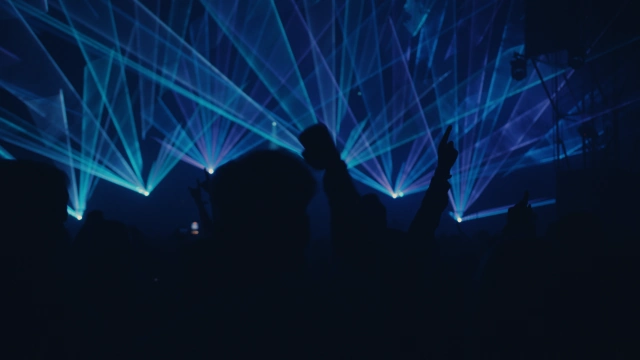
Midnight Headliner
by @leo
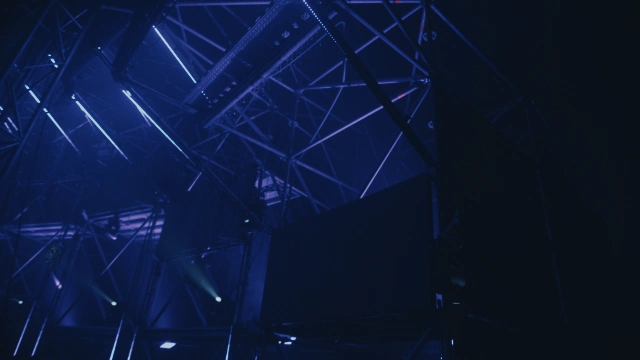
Titanium Rig
by @leo
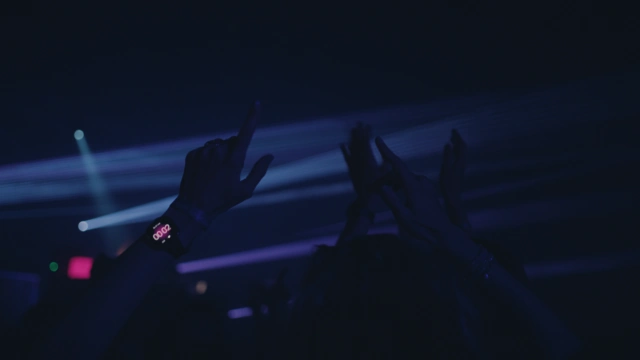
Velvet Encore
by @leo
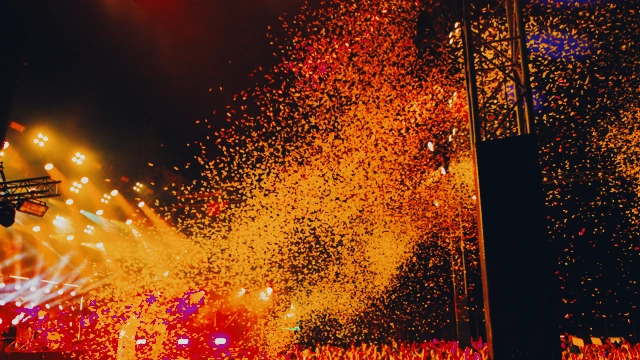
Scarlet Drop
by @leo
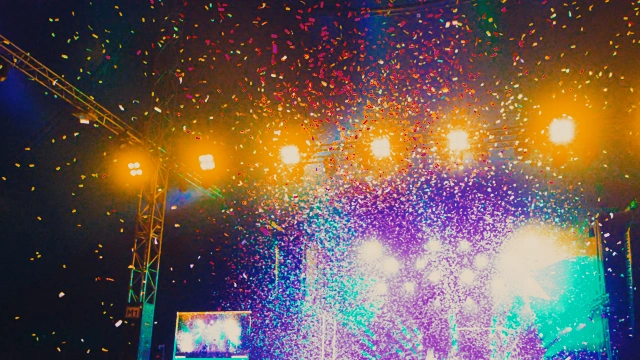
Solar Horizon
by @leo
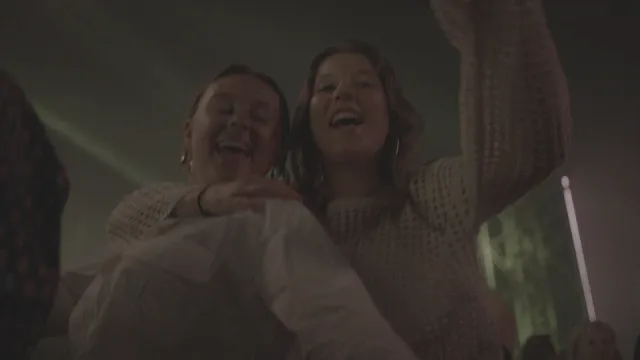
Soft Stage Shoulder
by @valmera
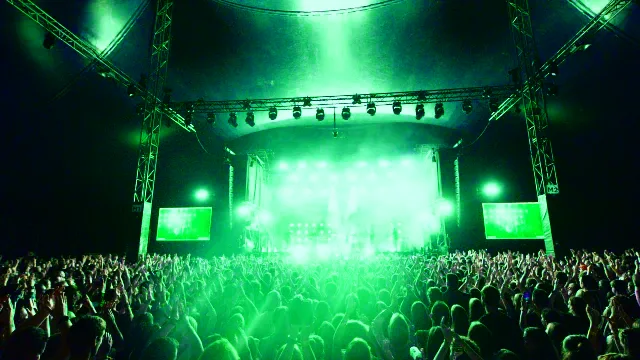
Blue hour warmth custom
by @julespeeters
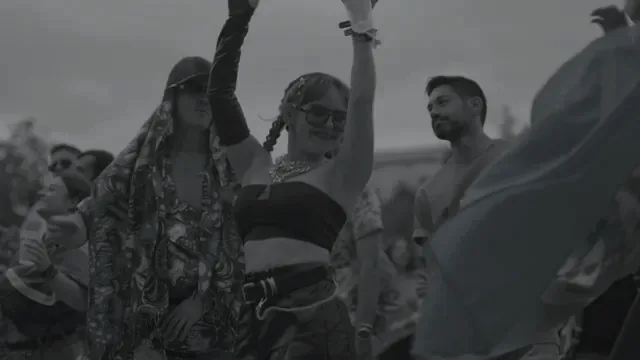
Deep Minimal Techno
by @leo
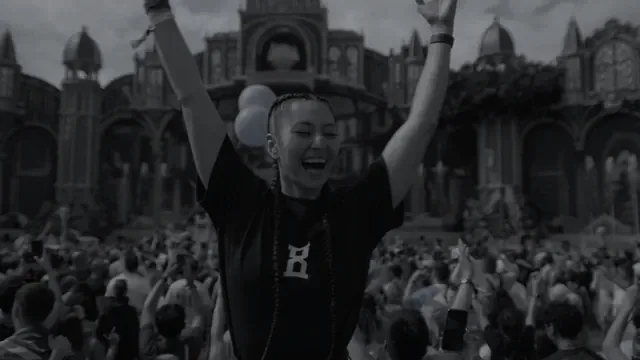
Warehouse Techno Vault
by @leo