Free LUTs for Final Cut Pro
35 free LUTs for concert, rave and festival footage, all of which load in Final Cut Pro. Final Cut also splits the job in two: a camera LUT that lives in the clip’s settings, and a Custom LUT effect you apply like any other effect.
Installing a LUT in Final Cut Pro
- For a conversion: select the clip, then Inspector → Info → Settings, scroll to Camera LUT and choose Add Custom Camera LUT. Point it at the .cube.
- Then set Output Color Space to whatever the LUT converts to — usually named in the LUT itself.
- For a creative look: apply the Custom LUT effect from the Effects browser and choose the file in the Inspector.
Final Cut reads .cube and .mga.
Which slot to use
We ship two kinds of LUT and Final Cut Pro has a place for each. A conversion LUT is technical — it puts log footage into Rec.709 correctly. A creative LUT is a look, and expects footage that is already in Rec.709. Correct, convert, then look.
- Camera LUT (Inspector → Info → Settings) is the technical slot, applied at the clip level before anything else.
- Custom LUT effect is the creative slot, applied and reordered like any other effect.
If the look is too strong
Drag the Mix slider — 100% is full strength, lower values blend the LUT back toward the original image.
Newest LUTs for Final Cut Pro
All 35 work in Final Cut Pro — these are the twelve most recent
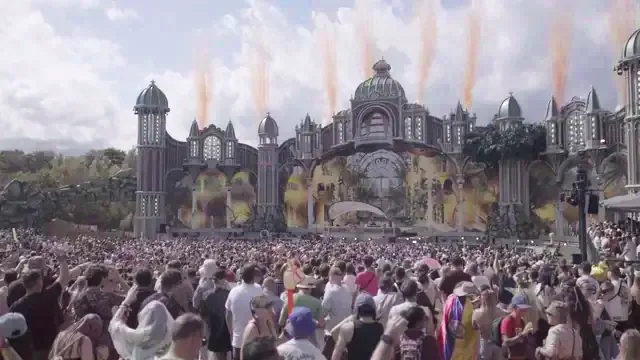
Log → Rec.709 Conversion
.cube
Sony S-Log3 → Rec.709
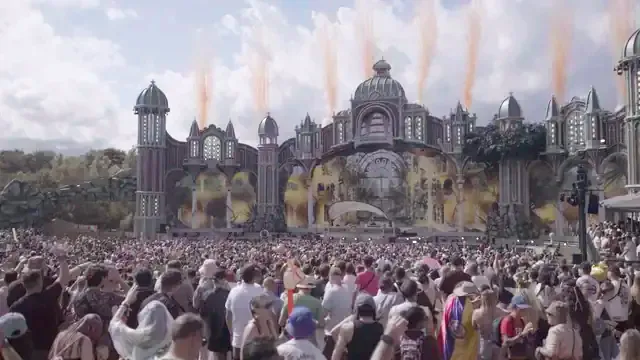
Log → Rec.709 Conversion
.cube
Canon C-Log3 → Rec.709
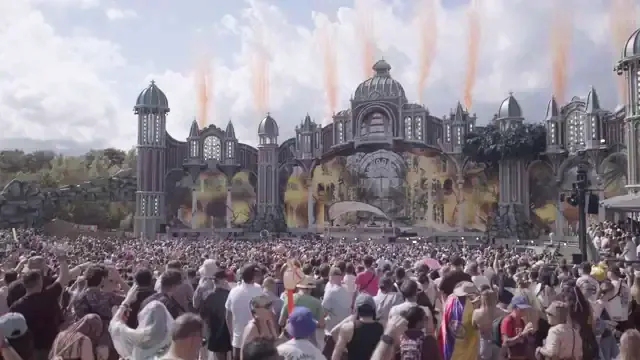
Log → Rec.709 Conversion
.cube
Apple Log → Rec.709
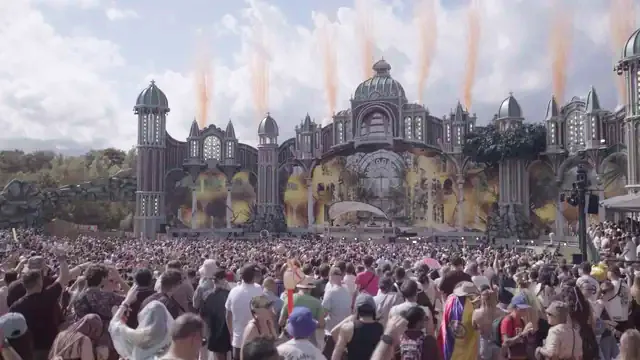
Log → Rec.709 Conversion
.cube
RED Log3G10 → Rec.709
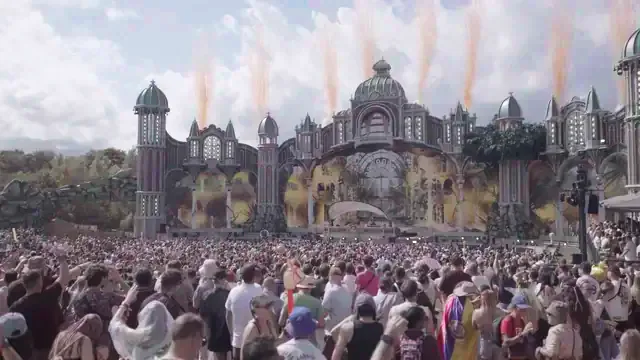
Log → Rec.709 Conversion
.cube
Panasonic V-Log → Rec.709
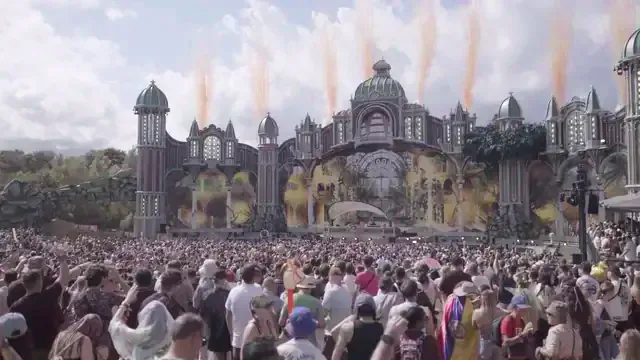
Log → Rec.709 Conversion
.cube
ARRI LogC3 → Rec.709
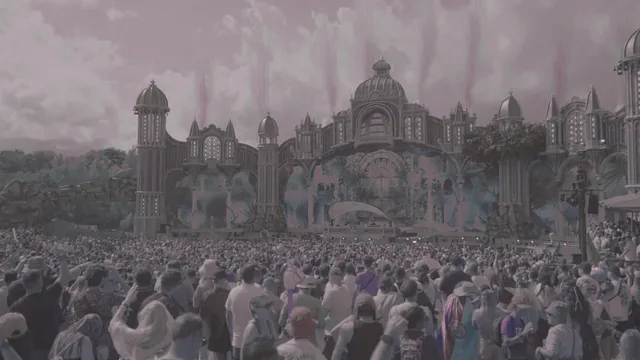
Warm & Golden
.cube
Mystic Field Magic Haze

Clean & Natural
.cube
Sony S-Log3 Golden Stage Grade

Clean & Natural
.cube
Canon C-Log3 Ember Stage Grade

Clean & Natural
.cube
D-Cinelike FPV Drone Chaser

Film Emulation
.cube
Warm 400 Film Standard

Film Emulation
.cube