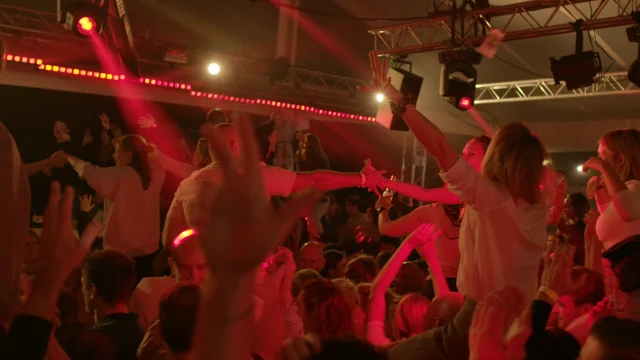
 Z CAM Z-Log2
Clip 53 — Z CAM Z-Log2 Practice Footage
Hard Highlight Clip (100% IRE) · Z CAM Z-Log2 · 24.0s · Median 35.6% / Peak 100.0% IRE
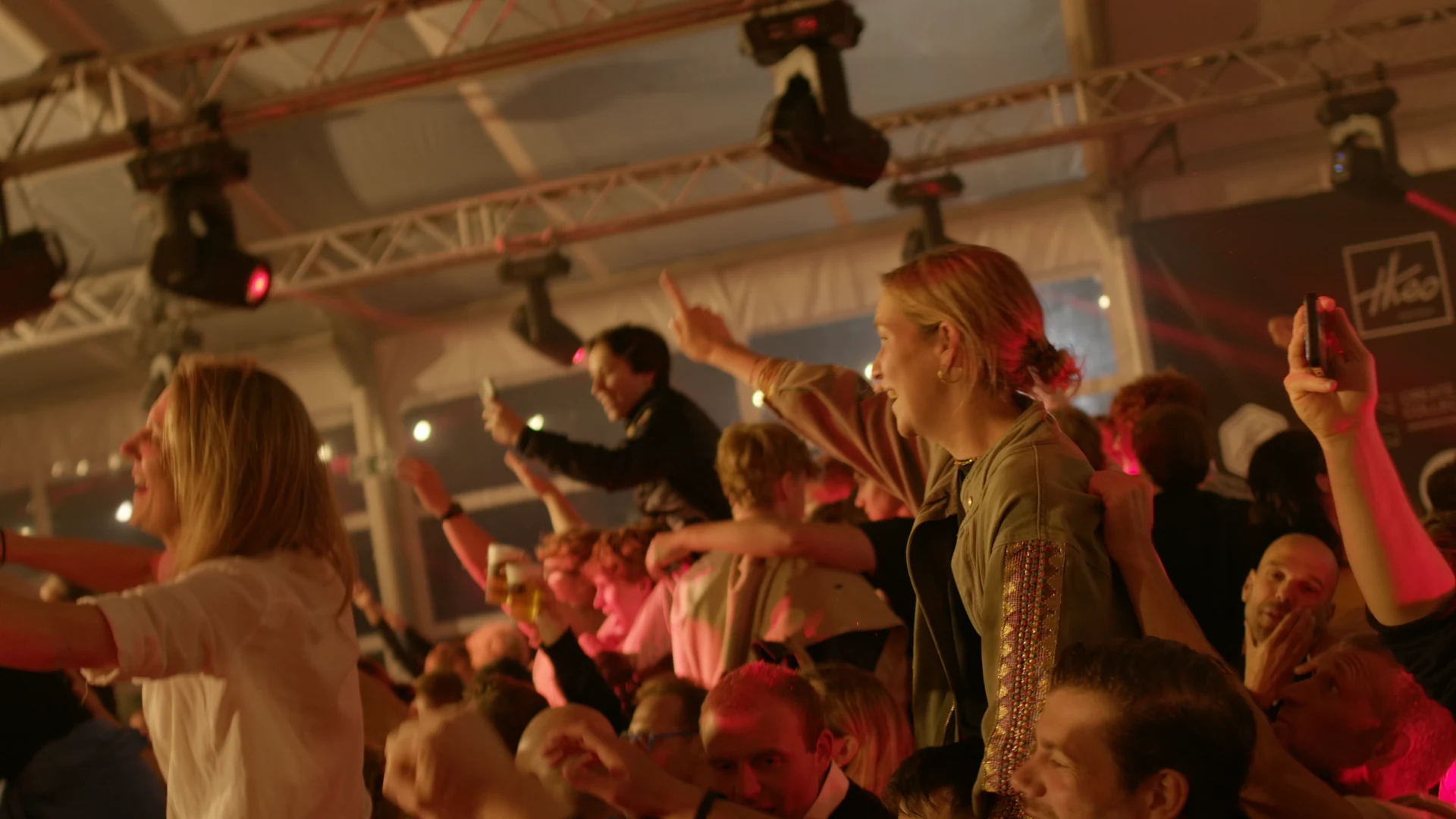
 Ungraded Z CAM Z-Log2
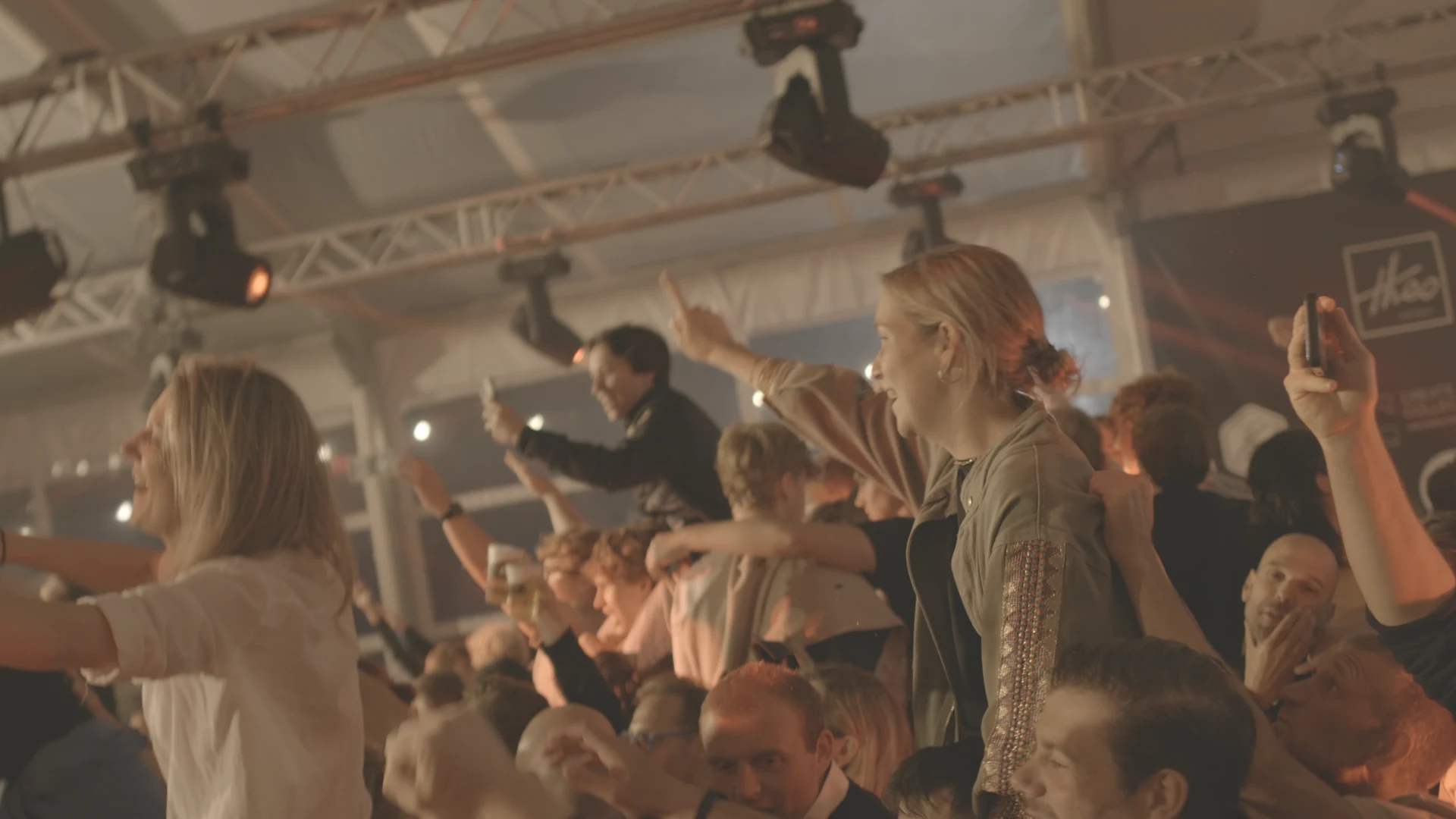
Rec.709 Preview
Measured clip telemetry
| Clip ID | clip_53 (#53 of 53) |
|---|---|
| Log curve | Z CAM Z-Log2 |
| Color gamut | Z CAM Z-Log2 |
| Camera body | Not recorded in container |
| ISO / White balance | Not recorded in container |
| Source runtime | 24.0s |
| Median luminance | 35.6% IRE |
| 99.9th percentile (p99.9) | 75.4% IRE |
| Peak luminance (max) | 100.0% IRE |
0% IRE (Black)
Luminance Span
100% IRE (Clip)
Median 35.6%
p99.9 75.4%
Peak 100.0%
Z CAM Container Tag Warning: Z CAM MOV recordings embed
color_transfer=bt709
in the file header even though the video stream is encoded in Z-Log2. In DaVinci Resolve or Premiere Pro,
override the clip’s Input Color Space manually rather than relying on automatic tag detection.
Grading notes for Clip 53
Clip 53 has a median luminance of 35.6% IRE in Z CAM Z-Log2, with the top 0.1% of pixels at 75.4% IRE and a peak at 100.0% IRE.
Specular stage fixtures or LED emitters already touch the file ceiling here. Pulling exposure down after the Rec.709 transform will turn clipped beams flat gray instead of bringing detail back — apply gamut compression and soft highlight roll-off ahead of any creative look node.
Camera body, ISO, and white balance were not recorded in this container. Z CAM publishes no analytical transfer formula for Z-Log2, so FestivalLUTs fits the Rec.709 preview transform directly to Z CAM’s own conversion LUT (aligning 18% gray to Rec.709 0.373) rather than shipping a baked Z-Log2 conversion .cube.
Recommended workflow
Place your exposure and white-balance trim node before the log conversion so adjustments happen in scene-referred camera space. Next, apply a Z-Log2 conversion transform (or a DaVinci Resolve Color Space Transform with Saturation Compression enabled), and add any creative stage LUT downstream.
Further reading: Log-to-Rec.709 Conversion Guide · Log → Rec.709 Conversions · Stage lasers & LED gamut clipping.
More Z CAM Z-Log2 practice clips
Adjacent frames from the same camera log set
Z CAM Z-Log2
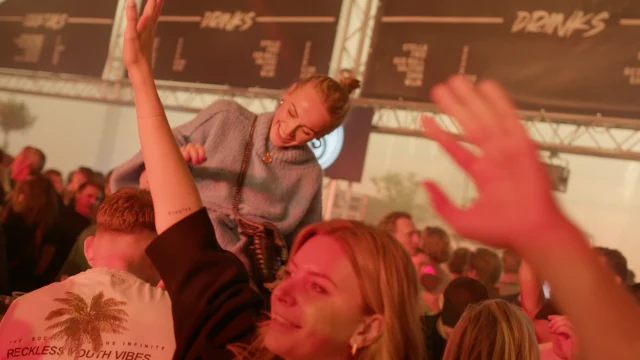 Z CAM Z-Log2
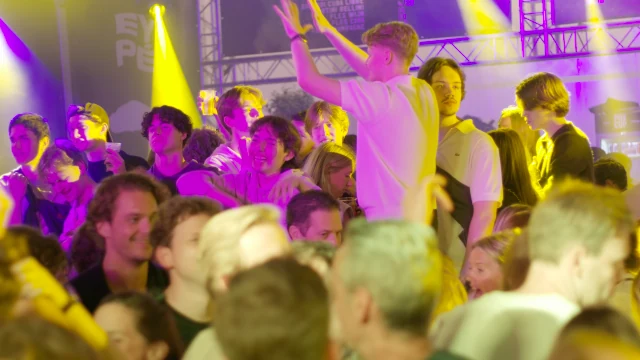 Z CAM Z-Log2
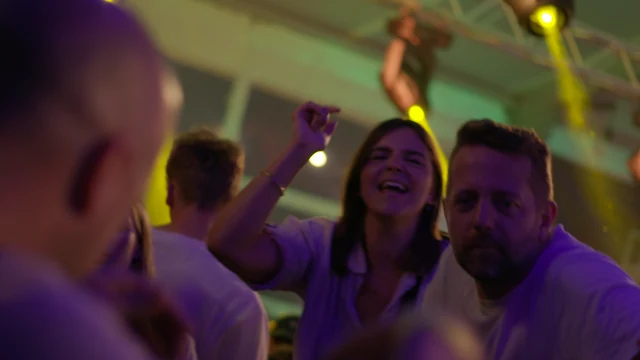 Z CAM Z-Log2
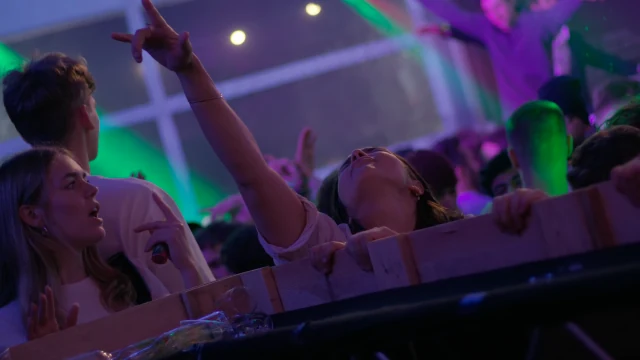 Z CAM Z-Log2
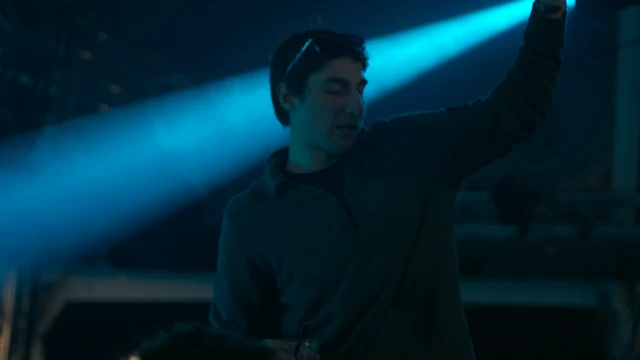 Z CAM Z-Log2